
Call Layout
The Call Layout in VitXi WebRTC provides users with a modern, intuitive interface for managing audio and video calls directly from their browser.
It allows full control of call actions — including media management, screen sharing, and quick access to CRM integration — all within a clean and responsive environment.
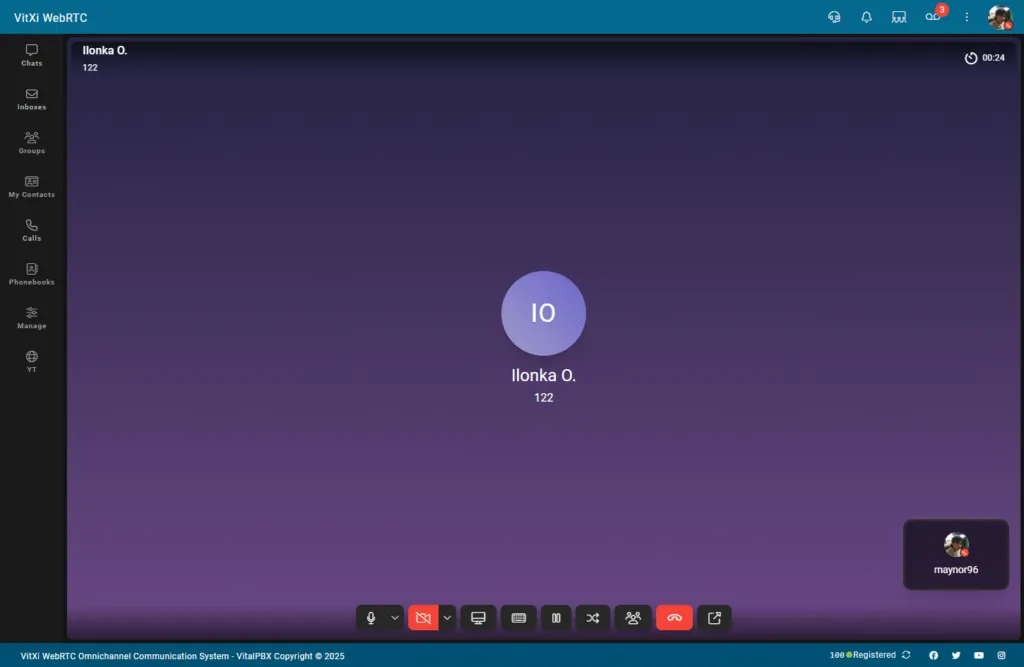
Main Display Area
Section titled “Main Display Area”The center of the interface serves as the visual zone of the call:
-
In audio calls, the contact’s name or number appears in a circular avatar.
-
In video calls, this area shows the remote participant’s video stream.
-
The user’s own video preview (if active) appears in the bottom-right corner.
Bottom Toolbar Controls
Section titled “Bottom Toolbar Controls”At the bottom of the screen, users find all interactive call options neatly organized as icons.
| Icon | Function | Description |
|---|---|---|
| 🎤 | Mute/Unmute Microphone | Toggle microphone input during a call. |
| 🔇 | Speaker Output Options | Choose between available output devices. |
| 📷 | Enable/Disable Camera | Start or stop your video stream (for video calls). |
| 🖥️ | Screen Sharing | Share your screen or application window. |
| 🔢 | Dialpad | Open the DTMF keypad to send digits during the call. |
| 🔄 | Transfer Call | Transfer the current call to another user or extension. |
| 👥 | Conference / Merge | Add another participant to create a conference call. |
| 🔴 | Hang Up | End the current call. |
CRM URL Button (Optional)
Section titled “CRM URL Button (Optional)”If a CRM URL has been configured in the Agent Profile, a dedicated CRM icon will appear in the toolbar.
Clicking this icon opens the CRM system (in a new tab or window), allowing agents to view or log call-related data instantly.
Functional Highlights
Section titled “Functional Highlights”| Feature | Description |
|---|---|
| Full WebRTC Audio/Video Support | Reliable real-time communication directly in the browser. |
| Dynamic Device Selection | Instantly switch microphones, speakers, or cameras. |
| Screen Sharing | Share your desktop or application during a call. |
| DTMF Keypad | Send digits (e.g., menu navigation or conference codes). |
| CRM Integration | Access linked CRM systems directly from the call. |
| Conference Support | Merge active calls to create multi-party conferences. |
| User Feedback | Call states are visually indicated with color-coded cues. |
Tips for Users
Section titled “Tips for Users”-
You can toggle between audio and video seamlessly during a call.
-
The mute button is highlighted when active — ensure it’s off before speaking.
-
When screen sharing, a system prompt may ask for permission — approve to begin sharing.
-
If using a headset, confirm the correct input/output devices under User Settings → Audio.
-
Press the red hang-up button once to safely end the session.
Was this article helpful?
Your feedback helps us improve the documentation.
Thank you for helping us improve!