
Install VitXi as Desktop App
VitXi WebRTC can be installed as a Progressive Web App (PWA), allowing you to use it like a native desktop application — complete with its own icon, window, and system notifications.
This improves accessibility, performance, and multitasking while keeping the same real-time communication features available in the browser.
A PWA is a web-based application that can be installed on your desktop directly from the browser.
Once installed.
What Is a Progressive Web App (PWA)?
Section titled “What Is a Progressive Web App (PWA)?”A PWA is a web application that behaves like a native desktop or mobile app once installed.
After installation, VitXi will:
-
Open in a standalone window (no browser tabs).
-
Support system notifications for messages and calls.
-
Remain accessible from the desktop, Start Menu, or Dock.
-
Auto-update silently whenever a new version is released.
Browser Compatibility
Section titled “Browser Compatibility”VitXi WebRTC supports PWA installation on most modern browsers and platforms:
| Browser | Platform | Supported | Notes |
|---|---|---|---|
| Google Chrome | Windows, macOS, Linux |  |
Recommended for best experience. |
| Microsoft Edge (Chromium) | Windows, macOS | |
Same installation flow as Chrome. |
| Safari | iOS / iPadOS | |
Works as a full PWA app when added to the Home Screen. |
| Safari | macOS |  |
Limited to “Add to Dock” shortcut, not a full PWA installation. |
| Firefox | All platforms |  |
Partial support, lacks install prompt. |
Step-by-Step Installation
Section titled “Step-by-Step Installation”1. Open VitXi WebRTC
Section titled “1. Open VitXi WebRTC”Go to your VitXi WebRTC URL:
https://your-domain/webrtcIf the site is secure (HTTPS), VitXi will automatically display an install banner like this:
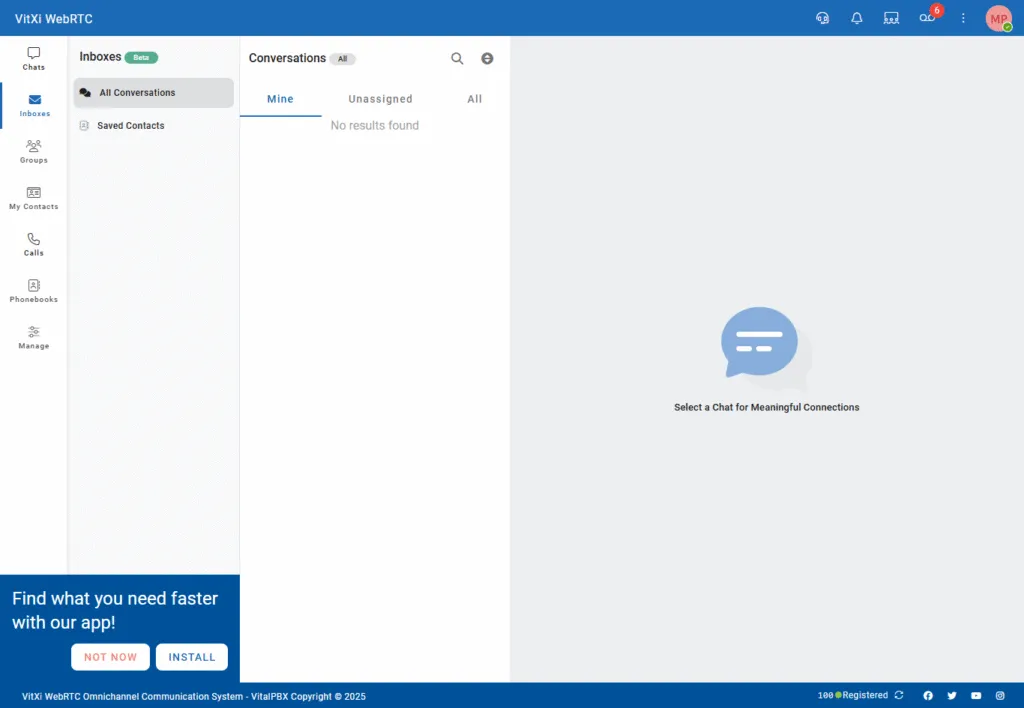
Step-by-step guide to install VitXi WebRTC as a desktop app (PWA) on Chrome, Edge, and iOS. Enable quick access and real-time notifications.
Tip: If you see the “Find what you need faster with our app!” banner at the bottom left — it means your browser supports PWA installation and HTTPS is properly configured.
2. Install Using the Banner
Section titled “2. Install Using the Banner”When the banner appears, simply click Install.
The app will be added instantly to your system and will open in its own window.
-
On Windows or Linux → a shortcut appears on the Desktop and Start Menu.
-
On macOS → it appears in the Applications folder and Dock.
3. Alternative Manual Installation
Section titled “3. Alternative Manual Installation”If you dismissed the banner, you can still install VitXi manually:
Google Chrome
Section titled “Google Chrome”-
Click the Install icon
 in the address bar.
 -
Select “Install VitXi”.
-
The application opens in standalone mode.
Microsoft Edge
Section titled “Microsoft Edge”-
Click the Install icon
 in the address bar.
 -
Confirm installation.
-
Edge will create a shortcut automatically.
Safari (iPhone / iPad)
Section titled “Safari (iPhone / iPad)”-
Tap the Share icon → Add to Home Screen.
-
Name it “VitXi” → Add.
-
It now appears as a native icon and supports notifications.
Managing the Installed App
Section titled “Managing the Installed App”Once installed, you can:
-
Launch VitXi directly from the desktop or dock.
-
Stay signed in and receive real-time notifications.
-
Benefit from automatic updates — no downloads needed.
-
Remove the app via browser → Manage Installed Apps or from your OS.
Notes & Troubleshooting
Section titled “Notes & Troubleshooting”-
The install banner only appears if:
-
The site is served over HTTPS
-
The browser supports PWAs
-
-
If you closed the banner accidentally, refresh or reinstall manually.
-
To reset the app, uninstall it and clear browser data for your VitXi domain.
-
Safari on macOS does not yet support full standalone mode.
Was this article helpful?
Your feedback helps us improve the documentation.
Thank you for helping us improve!