
Event Logs
The Event Logs module provides administrators with a complete record of key actions performed within the VitXi WebRTC application.
It allows you to monitor user activities, configuration changes, and system events, which is essential for auditing, troubleshooting, and security tracking.
Note:
This feature is available only when VitXi is installed on the same server as the PBX.1. Purpose
Section titled “1. Purpose”The Event Logs interface serves as a centralized event viewer for the application.
It helps administrators identify who performed an action, when it occurred, and from where — improving transparency and accountability across the platform.
2. Access the Event Logs
Section titled “2. Access the Event Logs”
Log in to the VitXi Administrator Panel.
Navigate to Management → Event Logs.
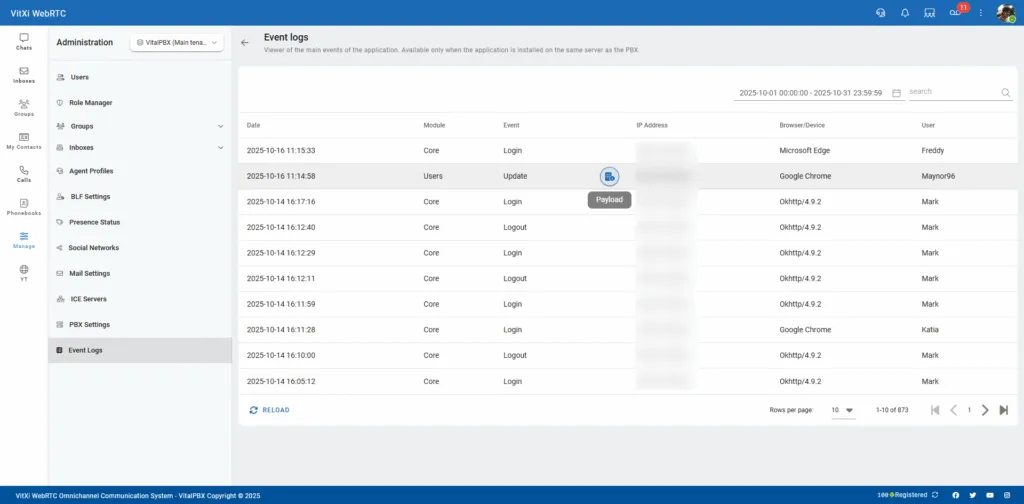
The table will display a chronological list of logged events.
3. Event Log Overview
Section titled “3. Event Log Overview”Each log entry contains detailed information about an event:
Column Description Date The exact timestamp of when the event occurred. Module The module or section of VitXi where the event originated (e.g., Users, Core, Groups). Event The specific action executed (e.g., Login, Logout, Update, Create). IP Address The IP address of the user or system initiating the event. Browser/Device The browser or client type used to access VitXi. User The username of the individual who performed the action. Tip:
Hovering over some entries may show additional details, such as the payload — the exact data sent during the event, which is useful for debugging.
4. Filtering and Searching
Section titled “4. Filtering and Searching”The Event Logs module includes tools to help administrators easily find specific events:
Date Filter:
Select a start and end date to display events within a specific timeframe.Search Field:
Enter a keyword (e.g., Login, Update, Mark) to filter results instantly.Pagination:
Use the navigation controls at the bottom to move through pages when the number of events exceeds the current display limit.Reload Button:
Click Reload to refresh and load the most recent logs.
5. Example Use Cases
Section titled “5. Example Use Cases”
User Activity Tracking
Identify when and from where a user logged into the application.Security Auditing
Detect unauthorized access attempts or configuration modifications.Troubleshooting
Analyze system errors or user actions leading up to a specific issue.Change Management
Review what administrative updates were made and by which user.
Was this article helpful?
Your feedback helps us improve the documentation.
Thank you for helping us improve!