
Groups
Groups in VitXi allow administrators to organize users for better communication, visibility, and management control.
A user can belong to one or multiple groups, which makes it easier to manage permissions, chat visibility, and contact sharing within an organization.
1. Access the Groups Module
Section titled “1. Access the Groups Module”-
Log in to the VitXi Administrator Panel.
-
Navigate to Management → Groups.
-
You’ll see a list of existing groups, including the Default Group automatically created during installation.
2**. Creating or Editing a Group**
Fill in the following fields:
| Field | Description |
|---|---|
| Name | The name of the group (e.g., Sales, Support, Call Center Team). |
| Description | A short description of the group’s purpose. |
| Tenant | Displays the tenant the group belongs to. (Note: The tenant cannot be changed once the group is created.) |
Click Save to create or Update to modify an existing group.
Adding or Removing Members
Section titled “Adding or Removing Members”Each group can include one or multiple users.
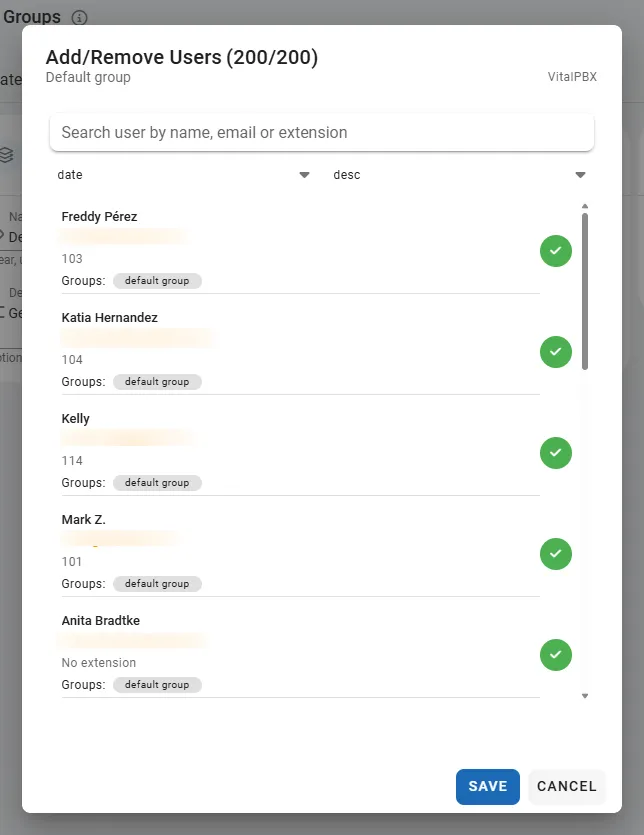
To manage group members:
-
Open the group you want to edit.
-
Click the Members dropdown or icon.
-
A popup window will appear where you can search users by name, email, or extension.
-
Select or deselect users to add or remove them from the group.
-
Click Save to confirm your changes.
Tip: Groups are used for chat visibility, contact organization, and permission segmentation. For example, users in the same group can message each other directly in VitXi.
Group Settings (Member Limit)
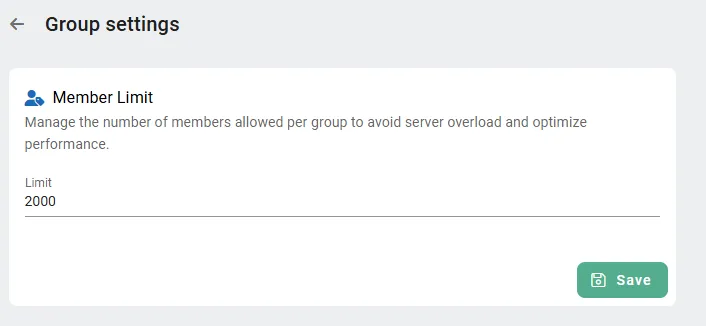
Section titled “Group Settings (Member Limit)”Administrators can set a maximum number of members allowed per group to prevent server overload and optimize performance.
Go to Management → Groups → Settings.
Adjust the Member Limit field (default: 150).
Click Save to apply the new limit.
Note: Increasing the group size beyond the recommended limit may impact real-time communication performance, especially in large call center environments.
Was this article helpful?
Your feedback helps us improve the documentation.
Thank you for helping us improve!