
Mail Settings
The Mail Settings module allows administrators to configure the mail server that VitXi will use to send emails.
This includes notifications, password recovery messages, and system alerts.
You can choose to use the built-in mail server or configure an external SMTP server for more control and reliability.
1. Access the Mail Settings Module
Section titled “1. Access the Mail Settings Module”-
Log in to the VitXi Administrator Panel.
-
Navigate to Management → Mail Settings.
2. Mail Server Configuration Options
Section titled “2. Mail Server Configuration Options”VitXi offers two configuration modes for email delivery:
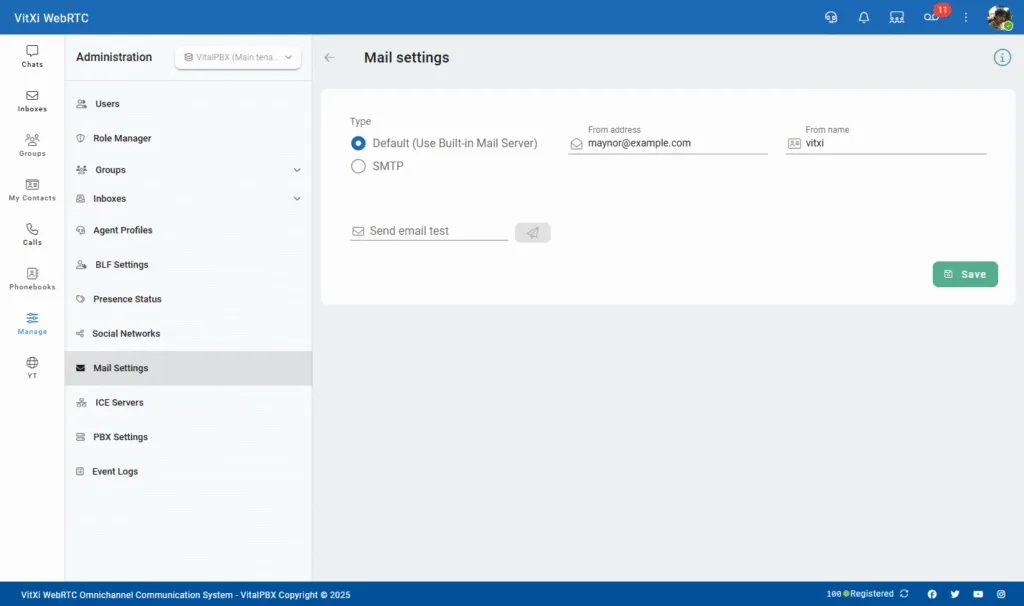
Option 1: Default (Use Built-in Mail Server)
Section titled “Option 1: Default (Use Built-in Mail Server)”Use this mode if you want VitXi to send emails using the internal VitalPBX mail service.
| Field | Description |
|---|---|
| From Address | The email address that will appear as the sender (e.g., [email protected]). |
| From Name | The display name shown as the sender (e.g., VitXi Notifications). |
Tip: Even when using the built-in mail server, make sure your PBX host is configured to relay emails properly through your network or domain.
Option 2: SMTP (External Mail Server)
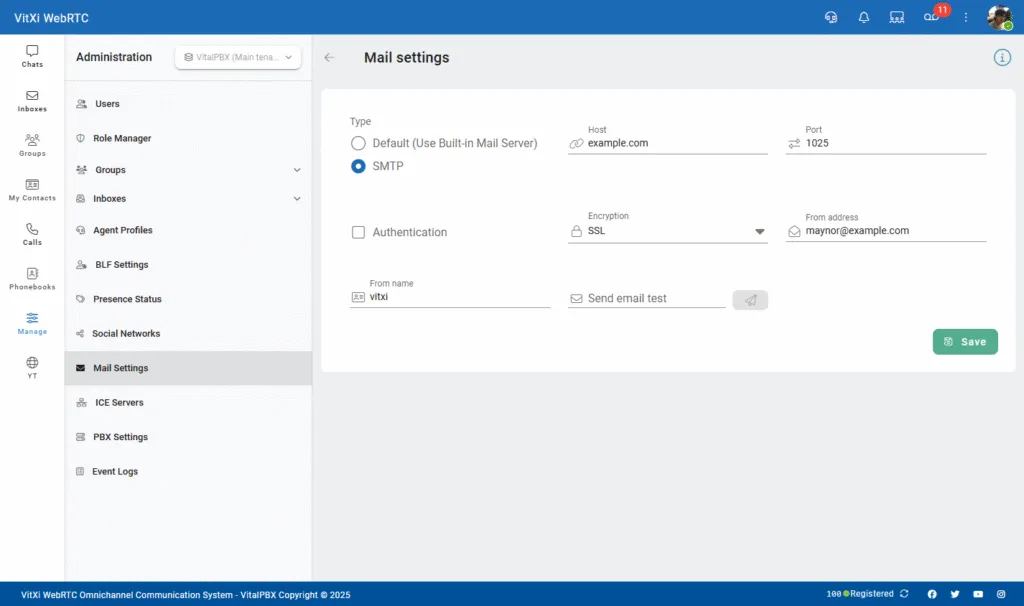
Section titled “Option 2: SMTP (External Mail Server)”This mode allows you to connect VitXi to an external SMTP service, such as Gmail, Microsoft 365, Zoho Mail, or your own mail relay.
| Field | Description |
|---|---|
| Host | SMTP server hostname (e.g., smtp.gmail.com or mail.yourdomain.com). |
| Port | Port used by the SMTP service (commonly 465 for SSL or 587 for TLS). |
| Encryption | Choose between SSL, TLS, or None, depending on your mail provider’s requirements. |
| From Address | The email address that will appear as the sender. |
| From Name | The display name shown in outgoing messages. |
| Authentication | Enable this option if your SMTP server requires login credentials. |
| Username / Password | Enter your SMTP credentials (only visible when authentication is enabled). |
3. Testing Email Configuration
Section titled “3. Testing Email Configuration”After saving your configuration, you can verify that the setup is working properly:
-
Enter a test email address in the Send email test field.
-
Click the Send Test Email icon.
-
If configured correctly, you should receive a test message in the specified inbox.
Note: If the test fails, verify your SMTP credentials, encryption type, and network firewall rules (ensure SMTP ports are open).
4. Recommended SMTP Services
Section titled “4. Recommended SMTP Services”For improved reliability and deliverability, you can use one of the following:
-
Gmail / Google Workspace:
smtp.gmail.com, Port 465 (SSL) or 587 (TLS). -
Microsoft 365 / Outlook:
smtp.office365.com, Port 587 (TLS). -
Zoho Mail:
smtp.zoho.com, Port 465 (SSL). -
Custom Mail Server: Use your domain’s mail server with valid SPF/DKIM settings.
Always use valid sender addresses associated with your domain to prevent emails from being flagged as spam.
Was this article helpful?
Your feedback helps us improve the documentation.
Thank you for helping us improve!